To print an Excel spreadsheet on one page, set its print area, choose a suitable orientation, and fit it to 1 page wide by 1 tall. If the preview becomes too small, use 1 page wide with Automatic height instead.
These menu names follow Microsoft’s Windows desktop Excel instructions for Microsoft 365 and Excel 2024, 2021, 2019 and 2016. Mac, web and mobile interfaces can differ; this is not a universal app procedure.
Save a working copy locally. Open the worksheet you intend to print.
Select one continuous range containing the heading, required columns and relevant rows. For a practice sheet, A1:F25 is an example range, not a promised product layout.
Choose Page Layout → Print Area → Set Print Area. Only this area will print; separate areas print on separate pages.
For a wide table, choose Page Layout → Orientation → Landscape. Match the paper size to the paper in your printer.
Choose one page total or one page wide
For one page total, open the Page Setup launcher on Page Layout, choose the Page tab, then Scaling → Fit to: 1 page wide by 1 tall. Select OK and inspect File → Print. Shrinking a long log can make it unreadable.
For a longer record, use Page Layout → Scale to Fit: Width 1 page, Height Automatic. Columns stay together while rows continue onto later pages. Check the smallest text in preview before printing.
Worked print-preview choice
Editorial example: a six-column, 25-row monthly summary may be readable on one landscape page. A six-column, 300-row transaction record needs a different test: if amounts become tiny at 1 wide by 1 tall, keep the width at one page and let the height continue. Actual page count depends on the selected range, font, paper and margins.
One-page goal: the heading, final row and rightmost column all appear, with amounts readable.
One-page-wide fallback: all columns remain together, and you review every page of rows.
If neither is readable, select a shorter period or a summary range in your working copy.
Why are columns missing when I print?
Missing columns: check the cause before shrinking
What preview shows
What to check
Rightmost column absent
Clear an old print area, select the complete intended range, then set the area again.
Columns on another page
Try landscape, then one page wide. Check every preview page.
Only a small selection
Check whether you selected Print Selection instead of the intended active sheet.
Text present but too small
Allow multiple pages tall or choose a smaller useful range.
To remove an obsolete area, use Page Layout → Print Area → Clear Print Area, then select and set the correct range. Clearing removes all print areas on the active worksheet. Save the working copy if you want to retain the revised area.
Before you print a budget or bill tracker
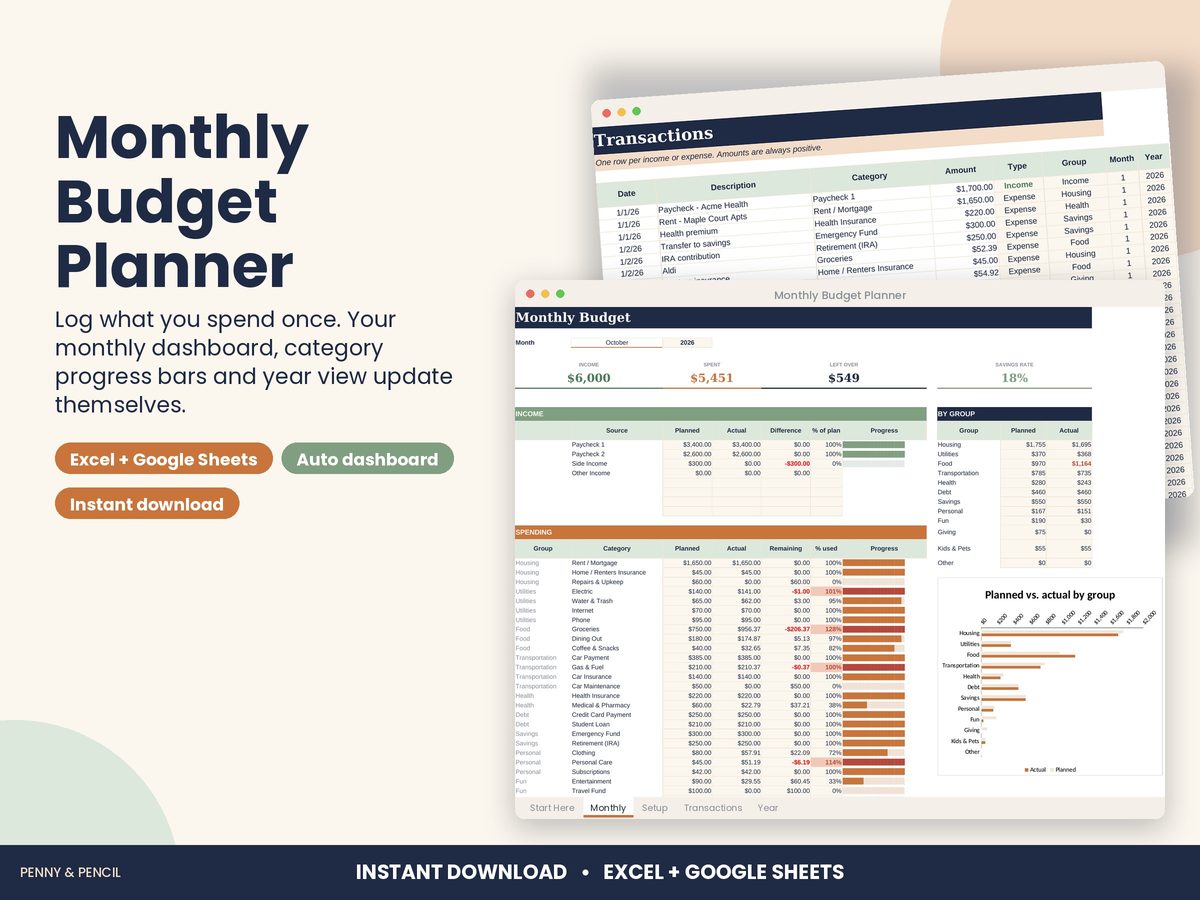
In an already-owned Monthly Budget Planner, choose the monthly summary or the transaction rows you need. For an already-owned Bill Tracker & Calendar, choose the bill list or monthly calendar you intend to read on paper. Neither file is promised to put every log on a single sheet; these are Excel print settings, not a new export feature.
Compare the preview with the worksheet: first and last rows, complete amounts, rightmost column, page count and paper size. Print one test page before a long run. Keep financial details local; this procedure needs no private workbook upload.
The email-list download above is the existing monthly budget PDF sample, already one page. It is a handwriting sheet rather than an editable Excel printing demo. For category planning, see the budget spreadsheet guide.
The free download opens when you join our list: join below.
Free downloads unlock when you join our list
Join the Penny & Pencil list once, confirm the email we send, and every free download, printable and planner on this site opens. We send a welcome note, deals, and one email every two weeks.
You are in. Your free downloads are unlocked on this page.